

Phishers turn a real Microsoft 365 outage into a lure
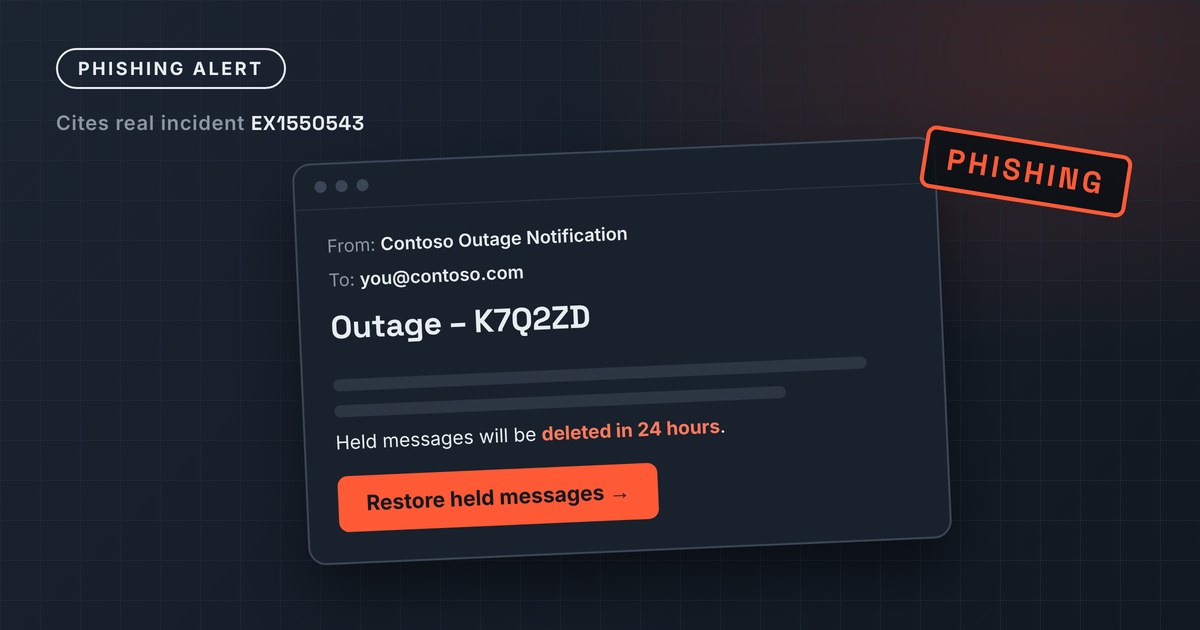
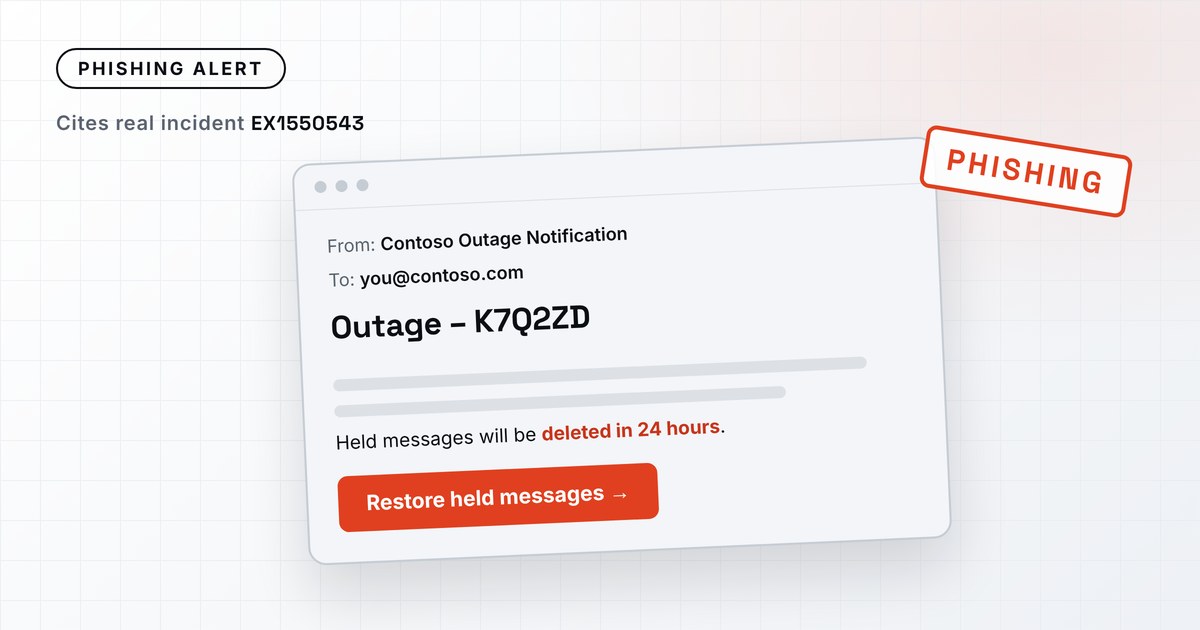
Within a day of the Exchange Online outage on 12 November, attackers were sending emails dressed up as official Microsoft 365 service-health notices, complete with the real incident number, EX1550543. Microsoft Threat Intelligence warned that the campaign is active and aimed at organisations across several US sectors.
What happened
Microsoft Threat Intelligence tied the campaign to the Microsoft 365 service disruption on 12 November, tracked as Exchange Online incident EX1550543. Microsoft detected the first of the phishing emails on 13 November and described the campaign publicly on 14 November.
The emails claim that messages held during the outage will be deleted within 24 hours unless the recipient clicks a link to restore them. Microsoft assesses the activity as consistent with credential phishing, but has not confirmed that any credentials were collected or that malware was delivered. It has not said how many organisations were targeted.
How to spot it
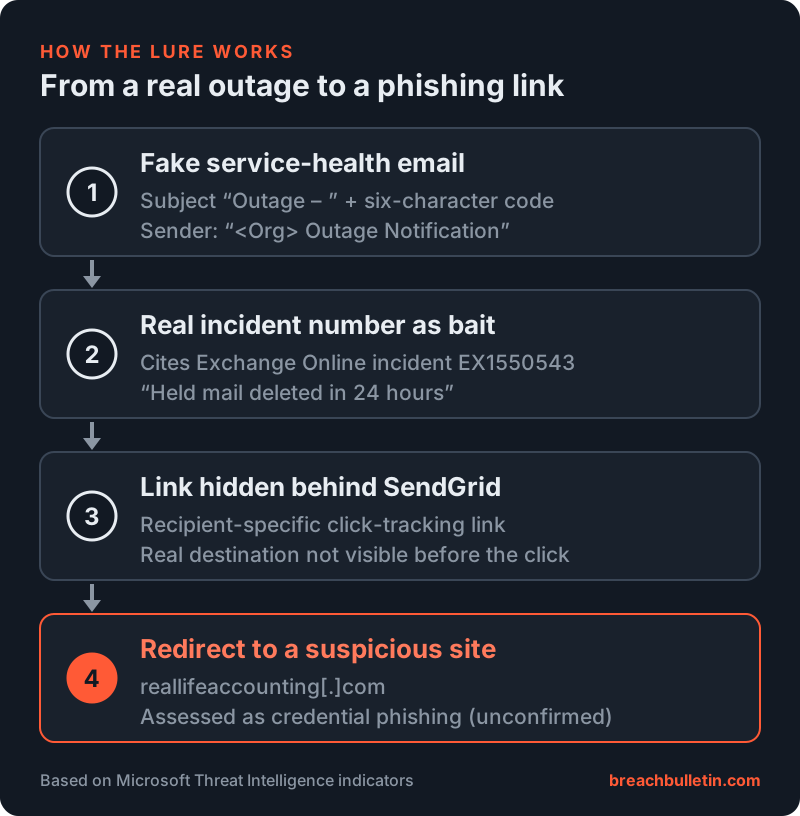
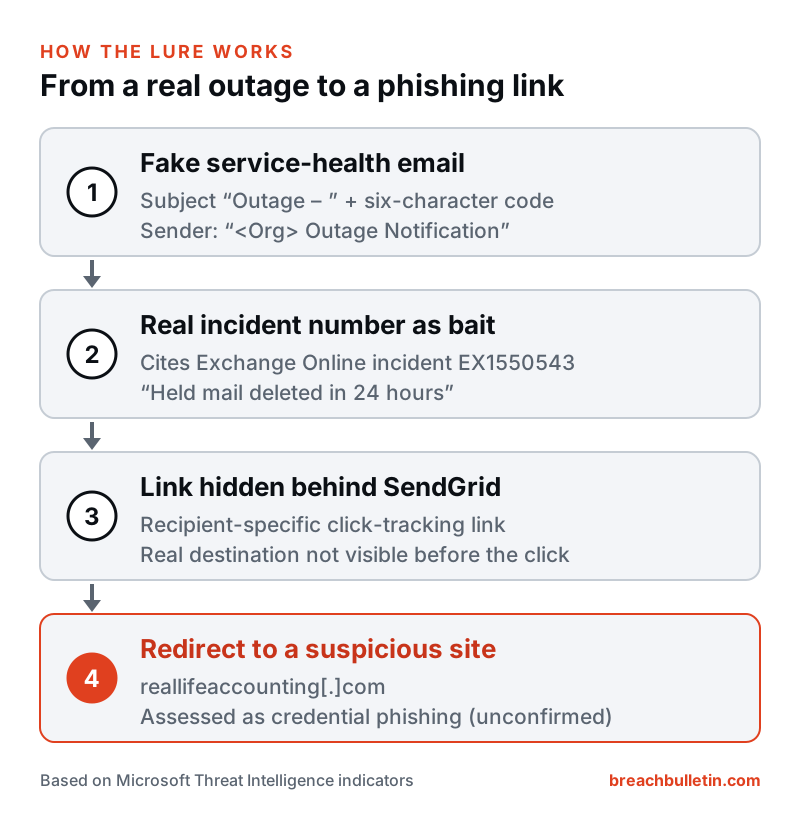
The messages share a consistent pattern, which Microsoft published so defenders can search for them:
- Subject: “Outage –” followed by a six-character code that changes from message to message.
- Sender name: the target organisation’s name followed by “Outage Notification” or “Service Health”.
- Sending domains:
moments-notice[.]com,planetmaison[.]comandnewbooker[.]com. - Links: recipient-specific SendGrid click-tracking links that redirect
to
reallifeaccounting[.]com(one example path is/themelist0.html).
Why it works
The attackers didn’t need to invent a crisis, because Microsoft had a real one. The incident number is genuine, IT teams had spent the day tracking it, and users had been missing mail, so a notice about held messages matched what they expected to see. The 24-hour deadline adds pressure, and routing the link through a legitimate email service such as SendGrid hides the final destination until the click.
How to block and hunt for it
-
Add the three sending domains and
reallifeaccounting[.]comto your email and web block lists. -
Look for delivered messages and clicks. In Microsoft Defender XDR advanced hunting, search the
EmailEvents,EmailUrlInfoandUrlClickEventstables, or use Threat Explorer in Defender for Office 365. The queries below are a starting point:// Messages from the campaign's sending domains or with its subject pattern EmailEvents | where Timestamp > ago(14d) | where SenderFromDomain in~ ("moments-notice.com", "planetmaison.com", "newbooker.com") or Subject matches regex @"^Outage\s*[-–]\s*[A-Za-z0-9]{6}$" | project Timestamp, RecipientEmailAddress, SenderFromAddress, SenderDisplayName, Subject, DeliveryAction, NetworkMessageId// Users who clicked through to the redirect domain UrlClickEvents | where Timestamp > ago(14d) | where Url has "reallifeaccounting.com" or tostring(UrlChain) has "reallifeaccounting.com" | project Timestamp, AccountUpn, Url, ActionType, IsClickedThrough, NetworkMessageId -
Make sure Defender Safe Links is switched on for all users, so links are checked again at the moment someone clicks.
-
For anyone who clicked, reset their password, revoke their active sessions and review recent sign-ins for unfamiliar locations or devices.
-
Tell staff that Microsoft 365 service health appears in the admin centre, and that Microsoft doesn’t email users asking them to click to recover mail. Ask them to report messages like this instead of acting on them.